Merge Duplicate Contacts: Android, iPhone & Outlook
You can merge duplicate contacts directly on Android, iPhone, and Outlook right now. On Android, open the Contacts app, tap your Google Account, go to Fix & manage → Merge & fix → Merge duplicates. On iPhone, open Contacts → Lists → All Contacts, then tap “View Duplicates” under your card and hit Merge or Merge All. In Outlook web or new Outlook, exact duplicates are automatically hidden; classic Outlook desktop requires an export-then-import workaround to trigger detection.
TL;DR:
- Back up your contacts before any bulk merge — you cannot undo some actions without a restore point.
- Google Contacts offers an “Undo changes” tool on the web; iCloud offers “Restore Contacts” at iCloud.com.
- If the merge option is missing on your device, the platform found no detectable matches, or your contacts are split across multiple accounts.
Table of Contents
- How do you merge duplicate contacts on Android?
- How do you find and merge duplicate contacts on iPhone?
- How does Outlook handle duplicate contacts, and what can you do?
- How do you undo or restore contacts after a merge?
- Why do duplicate contacts keep appearing?
- How do you prevent duplicates from coming back?
- Why centralizing contacts beats repeated manual merges
- Key Takeaways
- The case for centralizing over cleaning
- Loan Officer AI keeps your contact database clean automatically
- Official support links and further reading
How do you merge duplicate contacts on Android?
Google Contacts makes this the most straightforward of the three platforms, as long as your contacts are stored under a single Google Account.
Step-by-step:
- Open the Contacts app on your Android device.
- Tap your profile picture or initial in the top-right corner to confirm which Google Account is active.
- Tap Fix & manage near the bottom of the menu.
- Select Merge & fix.
- Tap Merge duplicates. Google will show a list of suggested pairs or groups.
- Review the suggestions, then tap Merge on individual pairs or Merge all to consolidate everything at once.
If “Merge duplicates” doesn’t appear, Google’s support documentation confirms this means no mergeable contacts were detected under that account. Switch accounts and repeat.
Manual alternative: If automatic suggestions miss a pair, open one contact, tap the three-dot menu, and select “Merge with another contact” to pick the duplicate yourself.

Pro Tip:Before merging, go to Settings → Accounts and confirm that contacts sync is enabled for the correct Google Account. Merging under the wrong account won’t touch duplicates stored elsewhere.
Limitations to know:
- Google Contacts cannot merge contacts stored in different accounts (e.g., a Google contact with a Samsung account contact) in a single step.
- Cross-account duplicates require you to export one set as a VCF file and import it into the primary account first.
- Always export a backup CSV from Google Contacts on the web before running Merge All on a large list.
How do you find and merge duplicate contacts on iPhone?
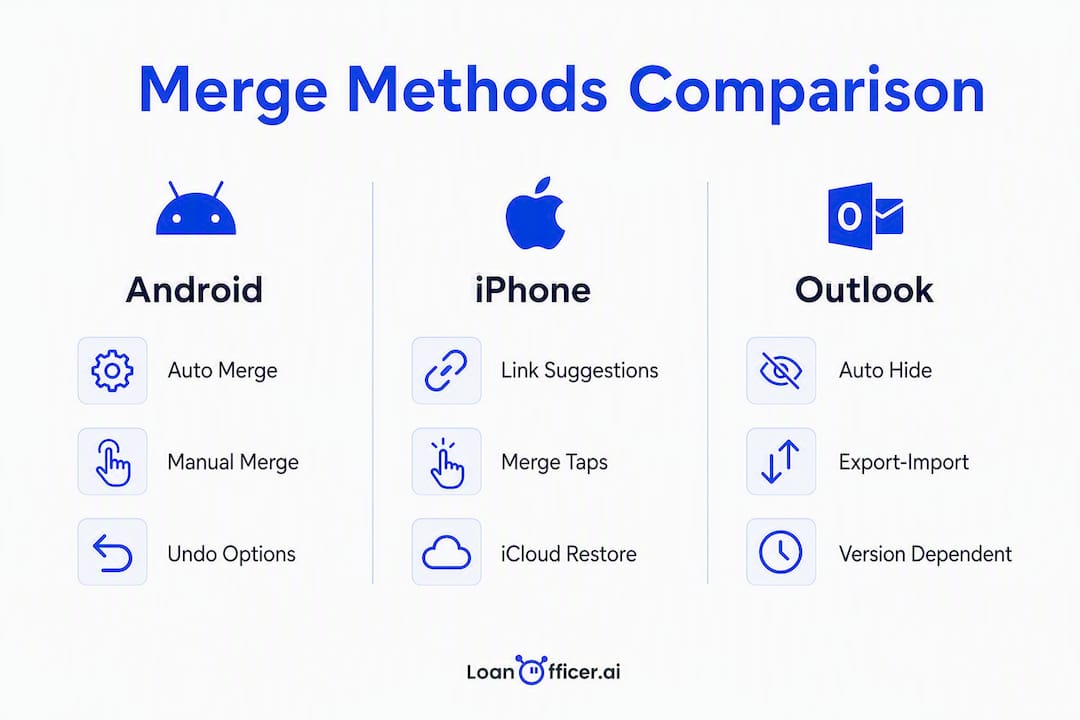
Apple introduced a native duplicate detection tool in iOS 16, so the exact steps depend on which iOS version you’re running. On iOS 16 or later, the process is built right into the Contacts app.
Step-by-step:
- Open the Contacts app.
- Tap Lists in the top-left corner.
- Select All Contacts.
- Scroll to the top. If duplicates exist, you’ll see a “Duplicates Found” banner just below your card.
- Tap View Duplicates.
- Review each suggested pair. Tap Merge on individual entries or Merge All to handle everything at once.
Per Apple’s support guide, tapping Merge combines the contact cards into one, keeping all unique fields from both records.
Linking vs. merging: iOS also offers a “Link Contacts” option inside individual contact cards. Linking keeps two separate records but displays them as one. Merging permanently combines them. If you’re unsure whether two contacts are truly the same person, link first and observe.
When the option doesn’t appear:
- The banner only shows when iOS detects matches. If your list is split across iCloud, Google, and Exchange accounts simultaneously, iOS may not surface all duplicates.
- Apple Stack Exchange research confirms that large contact counts or contacts stored across different account types without a primary sync account can suppress the Merge Duplicates option entirely. The fix: go to Settings → Contacts → Default Account and set iCloud as the primary, then re-sync.
- iOS 15 and earlier have no native duplicate detection. Third-party apps that use fuzzy matching, such as Cleanup Duplicate Contacts or Contacts Optimizer, can catch near-matches that the native tool misses on older versions.
Undo note: Merges in the iOS Contacts app are not instantly reversible within the app itself. Use iCloud’s Restore Contacts feature at iCloud.com to roll back if a merge removed data you needed.
How does Outlook handle duplicate contacts, and what can you do?
Outlook’s behavior varies significantly by version, and knowing which one you’re using saves a lot of frustration.
New Outlook and Outlook on the web
Microsoft’s support documentation confirms that new Outlook and Outlook on the web automatically hide exact duplicate contacts. You won’t see them cluttering your People list, but they’re not deleted either. If you want to actively review and remove them, go to People → Manage → Duplicates (available in some web builds) or simply let the auto-hide do its job.
Classic Outlook desktop
Classic Outlook has no native bulk merge. The practical workaround:
- Go to File → Open & Export → Import/Export.
- Select Export to a file → Comma Separated Values.
- Choose your Contacts folder and save the CSV to your desktop.
- Create a new, empty Contacts folder in Outlook.
- Import the CSV back into that new folder using Import from another program or file.
- During import, Outlook prompts you to “Do not import duplicate items” or “Replace duplicates with items imported.” Choose “Do not import duplicate items” to filter them out.
- Review the cleaned folder, then move contacts back to your main Contacts folder.
This export-then-import method is the Microsoft-recommended workaround for triggering duplicate detection in classic Outlook when no native bulk merge exists.
Comparison: Android, iPhone, and Outlook
| Platform | Steps required | Merge All available? | Undo / restore option | Key limitations |
|---|---|---|---|---|
| Android (Google Contacts) | Automatic suggestions + manual option | Yes | Undo changes (web) | Cross-account merges not supported natively |
| iPhone (iOS 16+) | Automatic banner + manual review | Yes | iCloud Restore Contacts | May not appear with large lists or mixed accounts |
| Outlook web / new Outlook | Auto-hidden exact duplicates | No manual Merge All | Limited; restore from backup | Near-matches not caught; no bulk manual merge |
| Classic Outlook desktop | Manual export/import workaround | No | Restore from PST/CSV backup | No native bulk merge; activity history risk |
How do you undo or restore contacts after a merge?
Every platform gives you a recovery path, but the window and method differ.
Google Contacts:
- Go to contacts.google.com on a desktop browser.
- Click the settings gear → Undo changes.
- Choose a restore point (options typically go back 30 days).
- Confirm. Google restores your entire contacts list to that point, so any changes made after that timestamp will also be reversed.
iPhone / iCloud:
- Go to icloud.com and sign in.
- Click your name in the top-right → Account Settings.
- Scroll to Advanced → Restore Contacts.
- Choose an archive from the list (Apple keeps several recent snapshots) and click Restore.
- Your current contacts are archived first, so you can go back again if needed.
Outlook:
- New Outlook / web: no built-in point-in-time restore. Recover from the CSV backup you exported before merging.
- Classic Outlook: restore from your PST backup or re-import the original CSV into a clean Contacts folder.
Pro Tip:Export a dated backup file before every merge session. Name it something like “Contacts_backup_2026-03-15.csv” so you can find the right version fast if you need to roll back.
Why do duplicate contacts keep appearing?
Duplicates usually come from multiple synced accounts, repeated imports, inconsistent name formatting, or sync conflicts after switching devices.
- Multiple synced accounts: Connecting both Google and iCloud to the same phone means contacts from each account appear side by side, often with no automatic deduplication between them.
- Repeated CSV or vCard imports: Importing the same file twice, or importing an updated file without removing the old records first, creates instant duplicates.
- Inconsistent formatting: “John Smith,” “J. Smith,” and “Smith, John” are the same person to a human but three separate records to most contact apps.
- Third-party app writes: Apps that sync calendars, email, or social profiles often create their own contact entries, sometimes duplicating records already in your primary account.
- Device migrations: Restoring from a backup after switching phones while also keeping an active cloud sync is one of the most common ways a contact list doubles overnight.
How do you prevent duplicates from coming back?
Prevention takes about five minutes to set up and saves hours of cleanup later.
Set a single default account:
- On Android: Settings → Google → Contacts → Default account for new contacts → pick one Google Account.
- On iPhone: Settings → Contacts → Default Account → iCloud (or whichever you use as primary).
- In Outlook: keep contacts in one folder tied to your primary email account.
Ongoing hygiene checklist:
- Never import a CSV without first checking whether those records already exist.
- Use consistent name formatting across all sources (First Last, no punctuation variations).
- Disable contact sync for any account you don’t actively use.
- After any device migration, turn off cloud sync temporarily, check for duplicates, then re-enable.
- Assign one person (or yourself) as the owner of the contact list with a defined cleanup schedule.
Recommended cadence: A quick monthly scan works for heavy users. Quarterly audits are the industry-recommended minimum for professionals who rely on contact data for outreach, and an annual full backup before any bulk merge is a baseline safety rule regardless of list size.
Why centralizing contacts beats repeated manual merges
For anyone managing contacts across multiple platforms — mortgage professionals, sales teams, or anyone with a CRM alongside a phone — the hub-and-spoke model consistently outperforms the fix-it-when-it-breaks approach.
The idea is simple: one authoritative master record (your CRM, Google Contacts, or iCloud) with two-way sync to every device and app. Changes flow in both directions, so a phone number updated on your phone also updates in the CRM, and a new contact added in the CRM appears on your phone. HubSpot’s contact management guide identifies this two-way sync architecture as the key reason hub-and-spoke setups reduce duplicate reintroduction compared to static CSV-based fixes.
What makes it work in practice:
- Master-record rules: Before merging, define which fields take priority when two records conflict. Most recent activity date, most complete email field, and primary phone number are common tiebreakers. CRM hygiene guidance from Vedain recommends documenting this rule before any bulk merge so you don’t lose the more complete record.
- Mandatory fields at entry: Requiring a name, email, and company at the point of contact creation eliminates the partial records that generate the hardest-to-catch near-duplicates.
- Scheduled audits: Quarterly reviews catch new duplicates before they compound. Assign a specific owner to the audit so it actually happens.
- Activity history preservation: Merging contact records in a CRM that tracks calls, emails, and notes requires care. Always confirm the platform preserves activity history from both records before running a bulk merge.
For mortgage professionals specifically, a database health check before any bulk merge reveals which records are worth keeping and which are genuinely stale, making the merge process faster and the result cleaner.
| Metric | Hub-and-spoke model | CSV-based manual fixes |
|---|---|---|
| Duplicate reintroduction risk | Low (real-time sync prevents it) | High (each import can re-create duplicates) |
| Activity history preservation | Yes, when CRM supports two-way sync | Often lost during import/export cycles |
| Recommended audit cadence | Quarterly | After every import event |
| Scalability | Scales with contact volume | Degrades as list grows |
Key Takeaways
The fastest way to clean up your contacts is to use each platform’s native tool first, back up before you merge, and set a single default account to prevent duplicates from returning.
| Point | Details |
|---|---|
| Android merge steps | Open Contacts → Fix & manage → Merge & fix → Merge duplicates; switch accounts if the option is missing. |
| iPhone merge steps | Contacts → Lists → All Contacts → “Duplicates Found” banner → View Duplicates → Merge or Merge All. |
| Outlook approach | New Outlook auto-hides exact duplicates; classic Outlook requires export → import to trigger detection. |
| Always back up first | Export a dated CSV or use platform restore tools before any bulk merge to protect against data loss. |
| Loan Officer AI for professionals | Mortgage pros can use Loan Officer AI’s centralized CRM to automate deduplication and maintain contact hygiene without manual merges. |
The case for centralizing over cleaning
Most people treat duplicate contacts as a cleanup problem. Fix it once, move on. But if you’re running a contact list that actually drives business — referrals, follow-ups, pipeline activity — the merge-and-forget approach keeps failing you because the root cause never changes.
The platforms covered here all give you tools to remove duplicate contacts after they appear. None of them prevent duplicates from forming in the first place when you’re pulling contacts from multiple sources. That’s the gap the hub-and-spoke model closes. One authoritative source, two-way sync, mandatory fields, and a quarterly audit schedule. It’s not complicated, but it requires a deliberate decision to stop treating your address book as a passive list and start treating it as a maintained asset.
For professionals who rely on contact data to drive revenue, the cost of a dirty list isn’t just inconvenience. Using the best budgeting app for freelancers can help keep your financial contacts synchronized and organized automatically. It’s missed follow-ups, duplicate outreach, and eroded trust with clients who get contacted twice. The merge tools described here are the right starting point. The centralized workflow is what keeps you from needing them every month.
Loan Officer AI keeps your contact database clean automatically
Manual deduplication works, but it’s time you spend on maintenance instead of clients. For mortgage professionals managing hundreds or thousands of borrower and referral contacts, Loan Officer AI’s AI-powered CRM for mortgage brokerages centralizes your contact database with two-way sync, automated deduplication rules, and scheduled hygiene checks built into the platform.

Where a manual merge catches what’s already broken, Loan Officer AI prevents duplicates from forming by enforcing consistent data entry, syncing across your LOS and communication channels, and flagging stale or conflicting records before they compound. The result is a contact list that stays clean between audits, not just after them.
Loan Officer AI is built specifically for loan officers and brokers who need their pipeline data to be accurate, not just organized. Start a trial at loanofficer.ai/lp/trial and see how automated contact hygiene fits into your existing workflow.
This article is published by Loan Officer AI. It provides general informational guidance, not professional data-management or legal advice. Confirm platform-specific behavior with the official support resources linked below.
Official support links and further reading
These are the primary sources behind the platform steps in this article. Each one goes directly to the relevant official documentation.
- Merge duplicate contacts on Android (Google Support) — Google’s official step-by-step for the Fix & manage → Merge & fix workflow, including what to do when the option doesn’t appear.
- Resolve or delete duplicate contacts in Outlook (Microsoft Support) — Microsoft’s documentation distinguishing new Outlook auto-hide behavior from the classic Outlook export/import workaround.
